

Create An API Key
- Open Maito and go to Settings.
- Open API Keys in the Developer section.
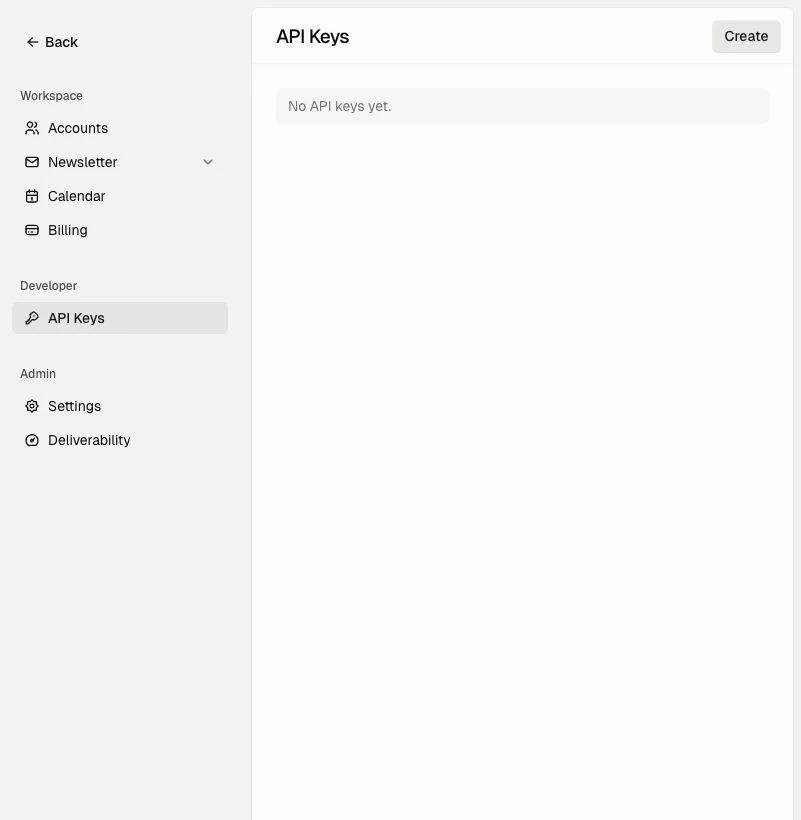
- Click Create.
- Give the key a clear name, such as
Production,Docs website, orInternal tool. - Choose an expiration policy.
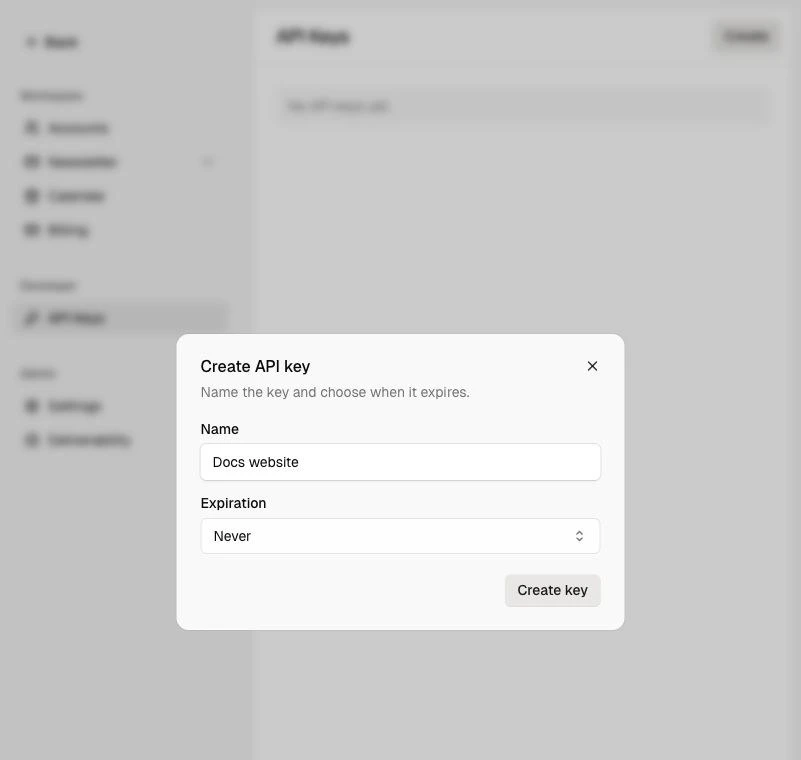
- Click Create key.
- Copy the key immediately. Maito shows the secret only once.
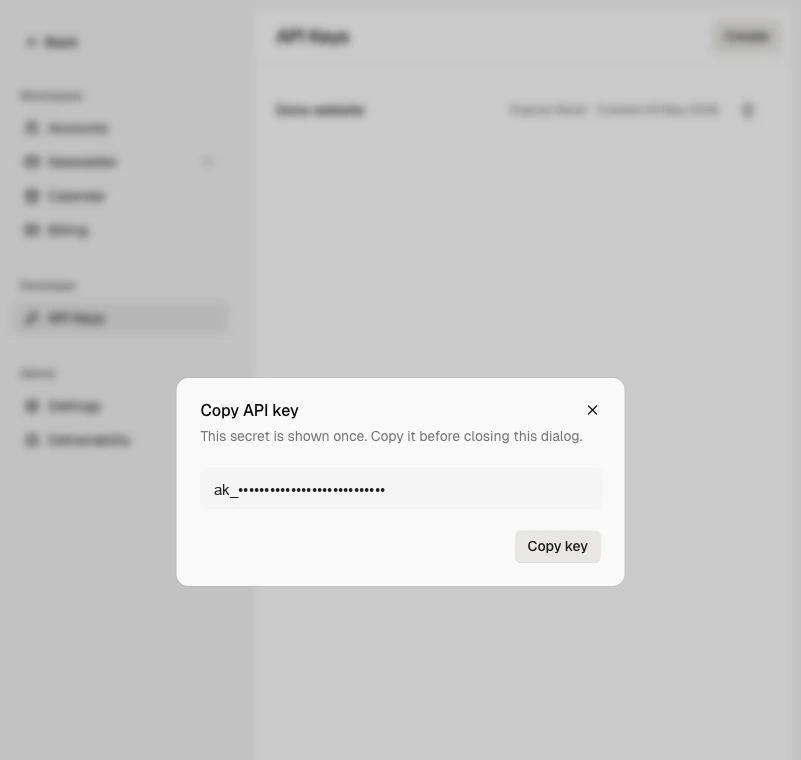
- Store the key in a secret manager or server-side environment variable.
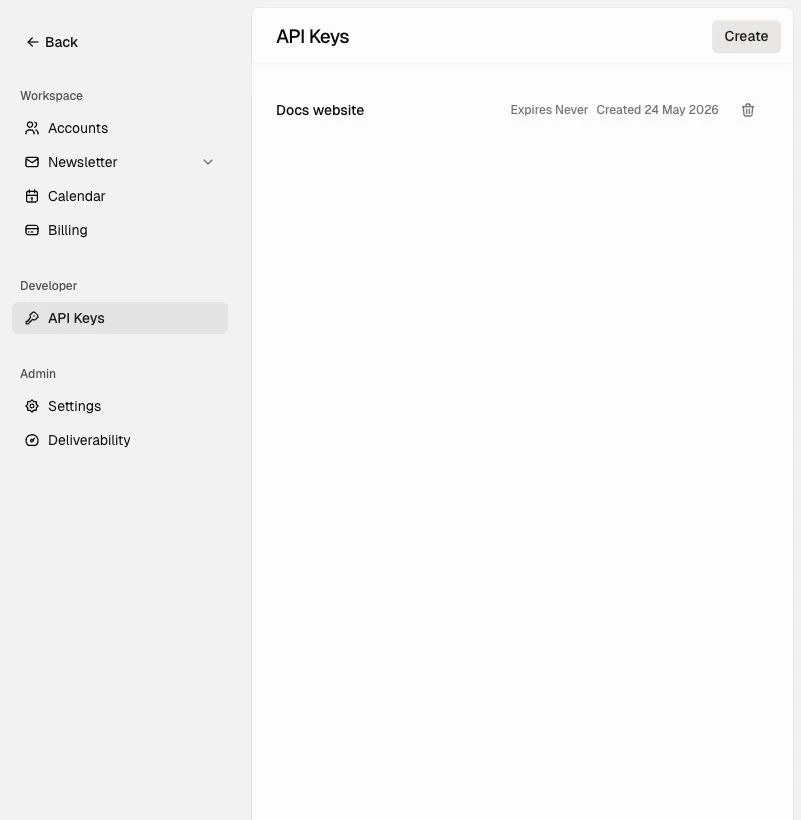
Use The Key
Send the API key as a Bearer token in theAuthorization header.
Server-Side Usage
Store API keys outside source control:Rotate Or Revoke A Key
If a key is exposed or no longer needed:- Open Settings.
- Open API Keys.
- Revoke the old key.
- Create a replacement key if the integration still needs access.
Authentication Errors
Requests without a valid API key return an error response.401 as an authentication failure and ask for a new or corrected API key.
API keys can only call supported customer API endpoints. If a valid key calls an app-only or internal route, Maito returns 403.