> ## Documentation Index
> Fetch the complete documentation index at: https://docs.getmaito.com/docs/llms.txt
> Use this file to discover all available pages before exploring further.
# Authentication
> Create and use a Maito API key for server-side API requests.
Maito customer API requests authenticate with an API key.
API keys are server-side secrets. Do not expose them in browser JavaScript, static websites, public repositories, logs, or mobile app bundles.
## Create An API Key
1. Open Maito and go to **Settings**.
2. Open **API Keys** in the Developer section.
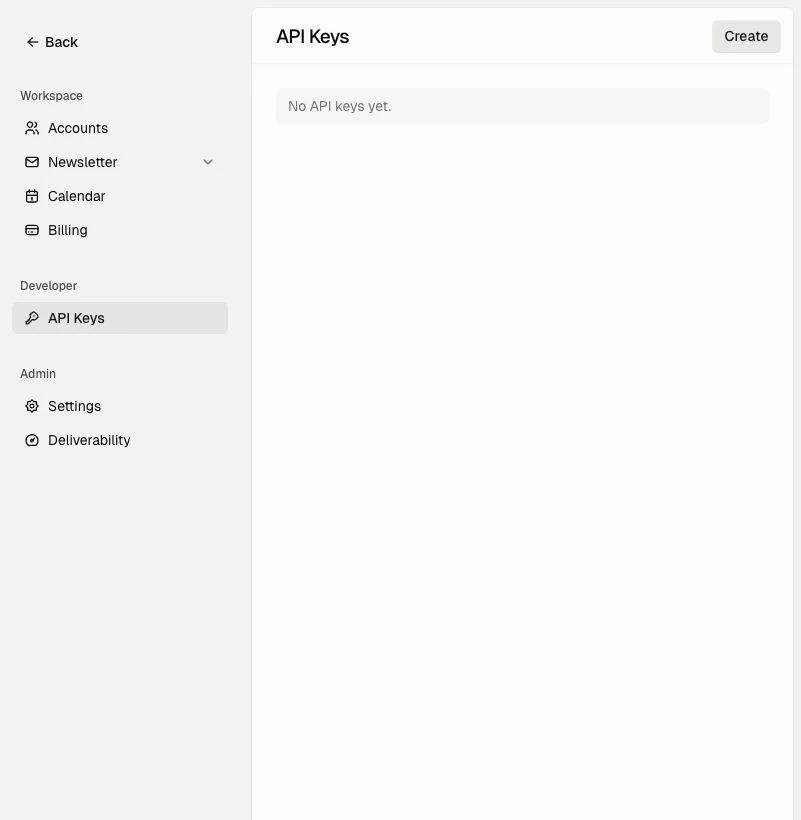 3. Click **Create**.
4. Give the key a clear name, such as `Production`, `Docs website`, or `Internal tool`.
5. Choose an expiration policy.
3. Click **Create**.
4. Give the key a clear name, such as `Production`, `Docs website`, or `Internal tool`.
5. Choose an expiration policy.
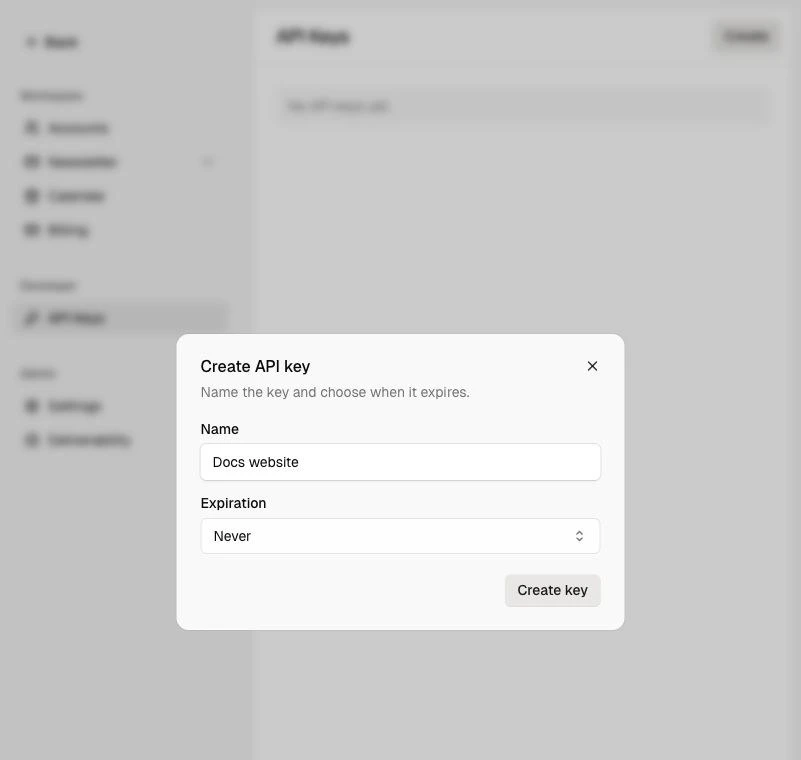 6. Click **Create key**.
7. Copy the key immediately. Maito shows the secret only once.
6. Click **Create key**.
7. Copy the key immediately. Maito shows the secret only once.
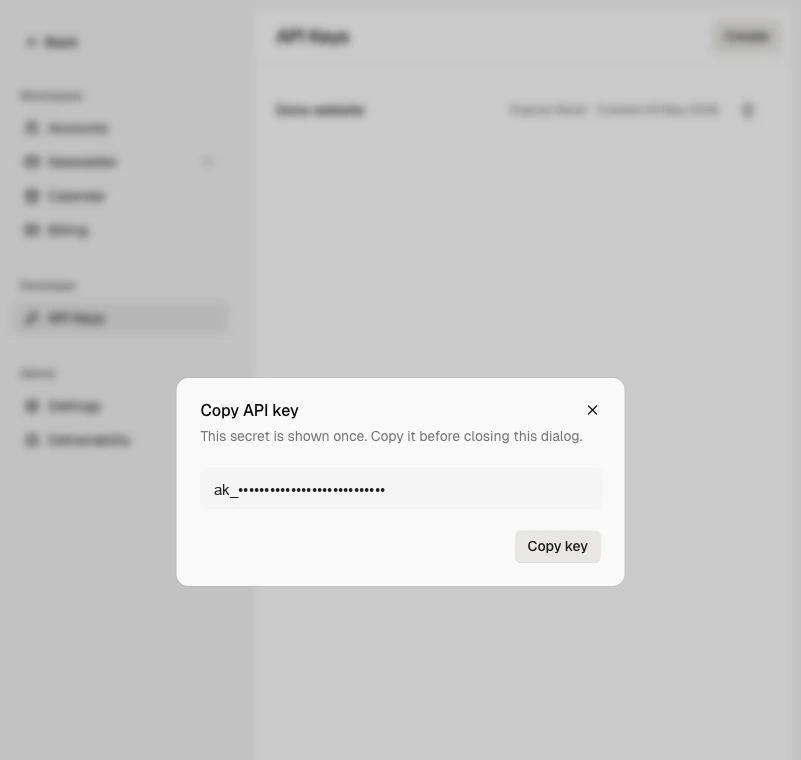 8. Store the key in a secret manager or server-side environment variable.
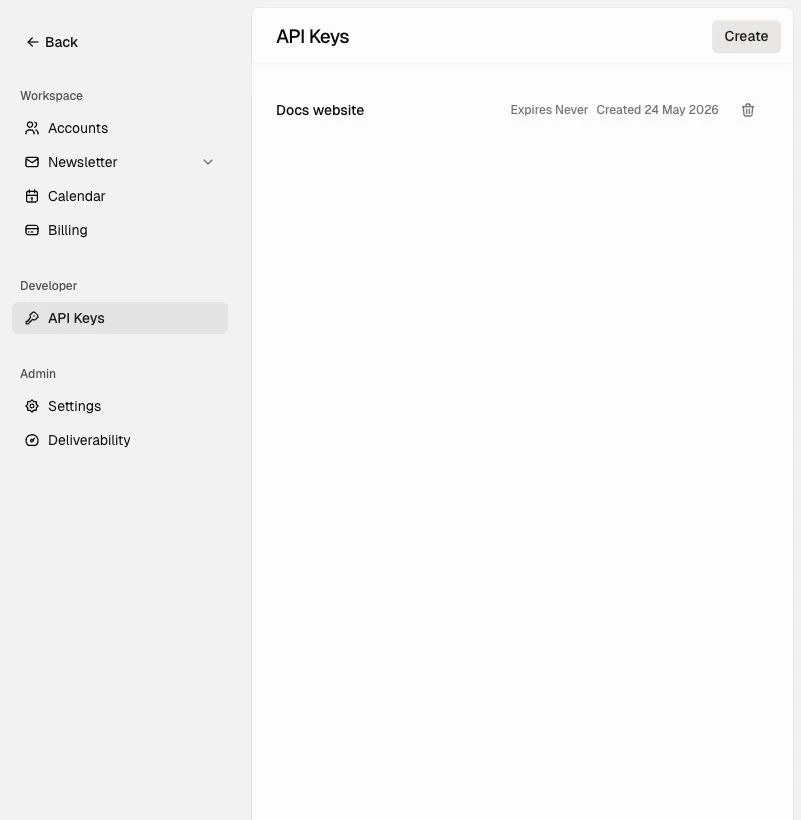 API keys are shown only when they are created. If you lose a key, revoke it and create a new one.
## Use The Key
Send the API key as a Bearer token in the `Authorization` header.
```http theme={null}
Authorization: Bearer
```
For example:
```bash theme={null}
curl "https://api.getmaito.com/v1/newsletter/subscribers" \
-H "Authorization: Bearer $MAITO_API_KEY" \
-H "Accept: application/json"
```
## Server-Side Usage
Store API keys outside source control:
```bash theme={null}
MAITO_API_KEY="your_api_key"
```
Then read the key from the runtime environment in your integration. Do not expose API keys in browser-side code, public repositories, logs, or client bundles.
## Rotate Or Revoke A Key
If a key is exposed or no longer needed:
1. Open **Settings**.
2. Open **API Keys**.
3. Revoke the old key.
4. Create a replacement key if the integration still needs access.
Update every integration that used the old key.
## Authentication Errors
Requests without a valid API key return an error response.
```json theme={null}
{
"ok": false,
"error": {
"code": "UNAUTHORIZED",
"message": "Authentication required."
}
}
```
Exact messages can vary by route. Clients should treat HTTP `401` as an authentication failure and ask for a new or corrected API key.
API keys can only call supported customer API endpoints. If a valid key calls an app-only or internal route, Maito returns `403`.
API keys are shown only when they are created. If you lose a key, revoke it and create a new one.
## Use The Key
Send the API key as a Bearer token in the `Authorization` header.
```http theme={null}
Authorization: Bearer
```
For example:
```bash theme={null}
curl "https://api.getmaito.com/v1/newsletter/subscribers" \
-H "Authorization: Bearer $MAITO_API_KEY" \
-H "Accept: application/json"
```
## Server-Side Usage
Store API keys outside source control:
```bash theme={null}
MAITO_API_KEY="your_api_key"
```
Then read the key from the runtime environment in your integration. Do not expose API keys in browser-side code, public repositories, logs, or client bundles.
## Rotate Or Revoke A Key
If a key is exposed or no longer needed:
1. Open **Settings**.
2. Open **API Keys**.
3. Revoke the old key.
4. Create a replacement key if the integration still needs access.
Update every integration that used the old key.
## Authentication Errors
Requests without a valid API key return an error response.
```json theme={null}
{
"ok": false,
"error": {
"code": "UNAUTHORIZED",
"message": "Authentication required."
}
}
```
Exact messages can vary by route. Clients should treat HTTP `401` as an authentication failure and ask for a new or corrected API key.
API keys can only call supported customer API endpoints. If a valid key calls an app-only or internal route, Maito returns `403`.